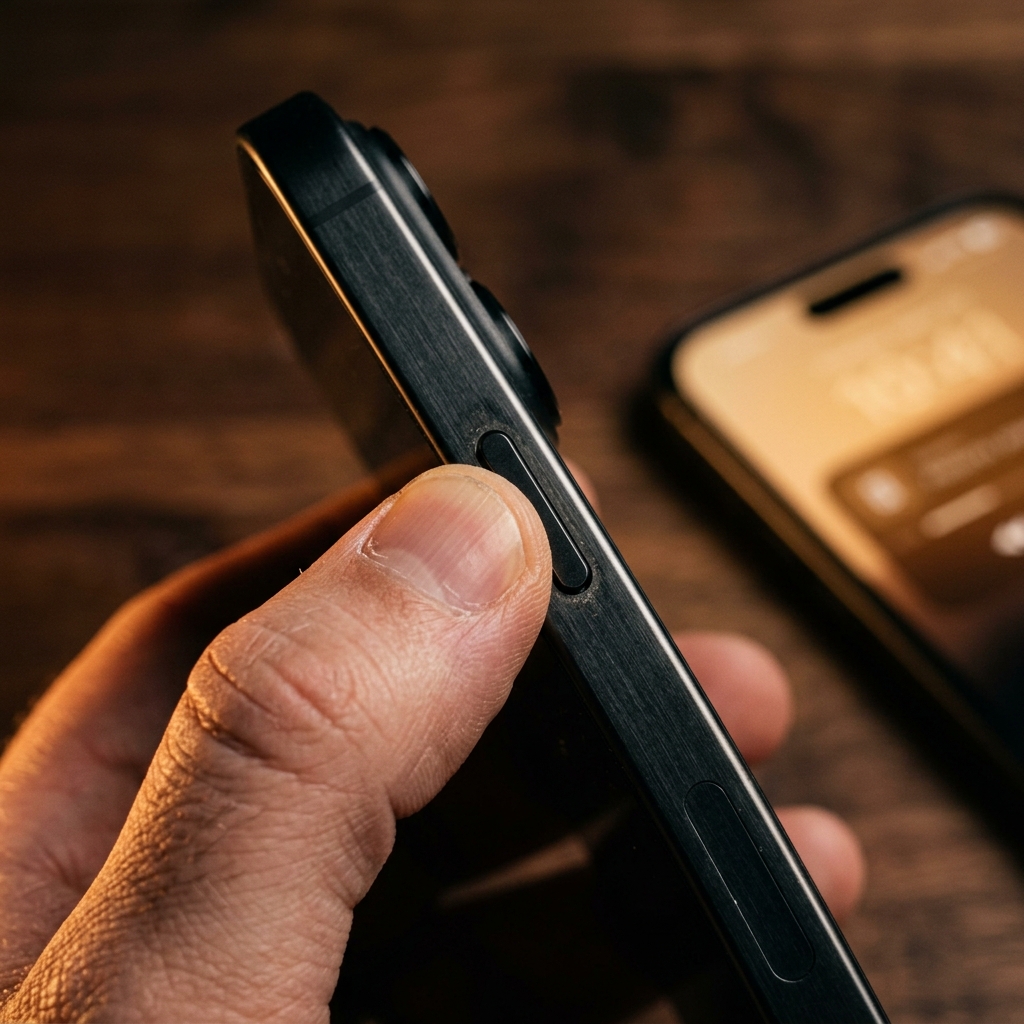
The Action Button Is the Best Feature on Your iPhone That You're Probably Wasting
Apple gave iPhone 15 Pro and 16 series owners a fully programmable physical button — one press that can trigger literally anything. Most people map it to the flashlight or silent mode. Both were already accessible in one swipe.
The Action Button's real potential is instant voice capture: press it once, speak your thought, release it, and have structured text ready to paste wherever you need it. No unlock screen, no app search, no tapping record, no editing a wall of unpunctuated transcript afterward.
This guide shows you exactly how to configure that workflow — and why the app you pair the button with is the difference between a party trick and a genuine productivity system. If you are still choosing the app itself, see the best voice to text app for iOS guide first.
What the Action Button Can and Cannot Do Natively
Before configuring anything, it's worth understanding what Apple's built-in options actually give you.
Out of the box, the Action Button can be mapped to:
- Voice Memo: Opens the app and starts recording immediately.
- Dictation (Apple): Opens a dictation input field.
- Shortcuts: Runs any custom Shortcut you've built.
- Focus, Flashlight, Camera, Translate and several other system functions.
The Voice Memo option is fast — but it produces a raw audio file. You still need to play it back, transcribe it manually, or run it through a separate tool. The capture is frictionless; the output is not.
Apple's built-in Dictation is text-based, which is better — but it transcribes into whatever text field is active on screen, requires you to be in an app, and produces a raw, unpunctuated stream with no AI formatting layer.
Neither option gives you what most users actually need: speak anywhere → clean, structured text → ready to paste.
What "Formatted" Output Actually Means
This distinction matters enough to dwell on it.
Raw voice-to-text transcription sounds like this:
"so I was thinking about the onboarding flow um basically we need to reduce the steps from like five to three and also maybe add a progress bar uh and the copy on step two is confusing because it says create account but the user already has an account by that point"
AI-formatted output from the same recording looks like this:
Onboarding flow improvements:
- Reduce steps from 5 to 3
- Add a progress bar
- Fix step 2 copy: user already has an account at this point — update label accordingly
The raw version requires editing before it can go anywhere. The formatted version can be pasted directly into a Notion task, a Slack message, a GitHub issue, or a team doc — without touching it.
Filler words ("um," "uh," "like," "basically") are automatically removed. Sentence fragments are resolved. Bullet points, numbered lists, and paragraph breaks are inferred from the natural rhythm of your speech.
This is the difference between a transcription tool and an AI dictation tool.
Step-by-Step: Map Your Action Button to FairFlow
Step 1: Install FairFlow
Download FairFlow from the App Store. The app is a native iOS application — no web wrapper, no Electron shell — which means the Action Button integration works at the system level, not through a workaround.
Step 2: Open iPhone Settings
Navigate to Settings → Action Button. You'll see the visual carousel of available actions. Swipe through until you reach the Shortcut option (the Shortcuts app icon).
Note: If you want direct integration without Shortcuts, check whether FairFlow appears as a native Action Button action in your Settings — it is designed to register as one.
Step 3: Select FairFlow as Your Action
If FairFlow appears as a native Action Button option in the carousel, select it directly. Your button is now configured.
If it appears via the Shortcut route:
- Tap Choose a Shortcut
- Tap New Shortcut or select an existing one
- Add the action Open App → FairFlow
- Optionally add a Start Recording action if your Shortcut supports it
- Save the Shortcut and confirm it in the Action Button settings
Step 4: Test the Button
Press the Action Button from any screen — locked, in another app, anywhere. FairFlow launches immediately and enters recording mode. Speak your thought. When you finish, the AI layer processes the audio, removes filler words, applies formatting, and copies the result to your clipboard.
Your next step is a single paste (⌘V on Mac via Handoff, or long-press → Paste anywhere on iPhone).
The "Thought Dumping" Workflow in Practice
The real power of this setup isn't any single recording — it's making voice capture a reflex rather than a decision.
Here's what the workflow looks like in daily use:
Walking Between Meetings
You finish a call and immediately have three follow-up tasks in your head. Instead of pulling up a notes app, typing, and losing one thought while you're typing another — you press the Action Button, speak all three in 20 seconds, and the output is a clean bulleted task list waiting in your clipboard by the time you sit down.
Reading and Reacting
You're reading a document on your phone and want to capture a response or annotation. Action Button → speak your thought about what you just read → the formatted note is on your clipboard. Paste it into your email reply, your reading notes, or your team thread.
Commuting
You're on the train without a keyboard. An idea for a feature, a blog angle, a client pitch. Press the button, speak it fully at 150 WPM, and it's structured and waiting when you arrive at your desk. No "remind me to write this up later" — it's already written.
Between Code Reviews
You're in your IDE on Mac and spot a pattern worth documenting. Press the iPhone Action Button, speak a quick technical note, and the formatted output lands in your FairFlow history — ready to copy into your IDE comment, README, or Slack thread.
FairFlow vs. Apple Voice Memo: A Direct Comparison
| Feature | Apple Voice Memo | FairFlow |
|---|---|---|
| Action Button support | ✅ Yes | ✅ Yes |
| Output format | Raw audio file | Structured, formatted text |
| Filler word removal | ❌ No | ✅ Automatic |
| Punctuation & paragraphs | ❌ No | ✅ AI-applied |
| Clipboard-ready output | ❌ Requires manual steps | ✅ Instant paste |
| Pasteable to Notion/Slack/etc. | ❌ Not directly | ✅ Yes |
| Pricing | Free (Apple) | $7 / 200 minutes, no subscription |
The trade-off is explicit: Apple Voice Memo is free and captures audio. FairFlow costs $7 for 200 minutes and gives you text you can immediately use. For anyone whose bottleneck is the post-recording cleanup, that trade-off is straightforward.
Why the Pricing Model Fits This Workflow Perfectly
Voice capture in bursts — the way the Action Button encourages it — means your usage is naturally variable. Some weeks you'll capture 15 notes. Some weeks you'll capture 3.
A subscription pricing model charges you the same regardless. You pay $15/month whether you dictated 10 minutes or 200.
FairFlow's $7 for 200 minutes, no subscription, no expiration model matches how the Action Button workflow actually gets used. You top up when you've gone through your minutes. The credits don't disappear on the first of the month. There's no recurring charge arriving when you had a slow dictation week.
200 minutes of voice capture — at the average rate of a daily Action Button user — represents months of real-world usage. A single $7 top-up is a one-time experiment that costs less than your last coffee and comes with no commitment beyond that.
Troubleshooting: Common Action Button Issues
The button opens FairFlow but doesn't auto-start recording
Check FairFlow's in-app settings under Action Button Behavior and ensure "Start Recording Immediately" is enabled. This bypasses the home screen and enters recording mode on launch.
The button does nothing when the phone is locked
Go to Settings → Face ID & Passcode and confirm that Action Button is listed under "Allow Access When Locked." Enable it if not.
The formatted text isn't appearing in clipboard
Ensure FairFlow has Clipboard access granted in Settings → FairFlow → Paste from Other Apps (set to Allow). The clipboard copy happens automatically at transcription completion.
Action Button is triggering a different app
Settings → Action Button, then scroll through the carousel to verify FairFlow (or your FairFlow Shortcut) is selected. A previous configuration may have persisted.
The One-Button Productivity Upgrade
The Action Button is a physical interface to your digital workflow — the rarest kind of hardware shortcut Apple gives users. Mapping it to a flashlight is like binding a dedicated keyboard key to the calculator.
The highest-value mapping is instant AI voice capture: press, speak, paste. No friction between a thought and a structured, usable output. That same frictionless habit is why people leave subscription dictation apps for a Whisper Flow alternative, and why writing faster with voice notes starts with one reliable trigger.
Configure FairFlow on your iPhone → — $7 for 200 minutes. No subscription, no expiration. One button press away from every idea you would have otherwise lost.